
AstroNvim Setup in Fedora 39
Transform your Neovim with AstroNvim: Easy setup guide for Nerdfonts, Python, and essential dev tools.
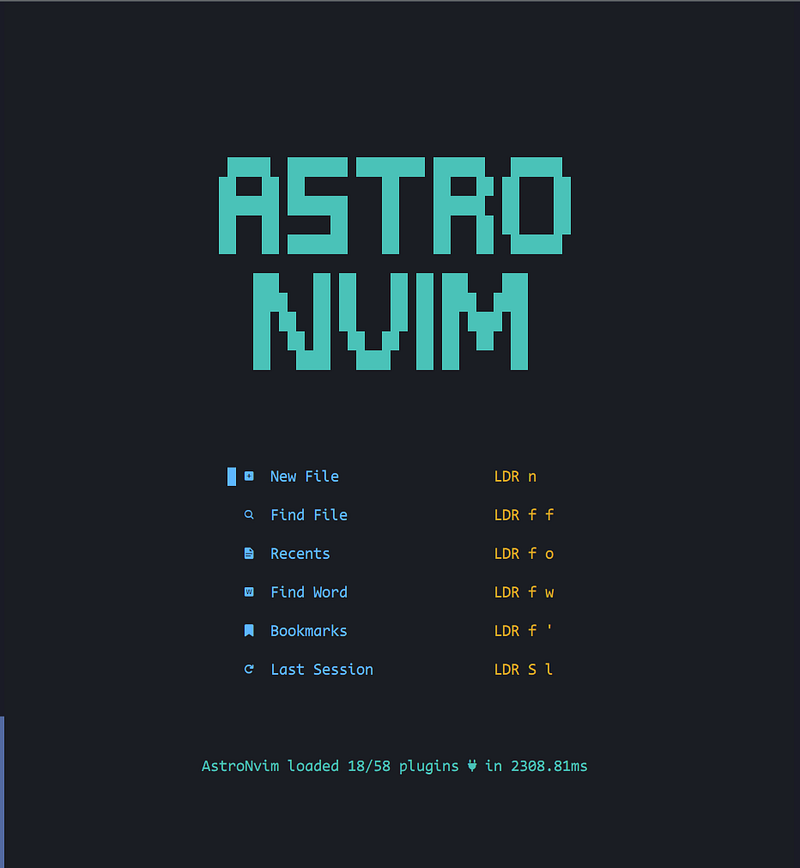
Website: https://astronvim.com/
Prerequisites
Install Nerdfonts
- Download any font you like here: https://www.nerdfonts.com/font-downloads
- Put the extracted files to
/usr/.local/share/fontsif you want them installed only by your user or/usr/share/fontsif you want them installed globally (you need sudo right). - Rebuild the font cache:
fc-cache -f -v
Install Neovim
Website: https://neovim.io/
sudo dnf install -y neovim python3-neovimWhen you install Neovim, it works with the command nvim not to clash with Vim as vim. So we need to create an alias for nvim if you would like to open Neovim with vim command. I assume that you installed zsh as the default shell:
sudo nvim ~/.zshrcAdd the following line:
alias vim=nvimIn some consoles (it happened to me with Konsole in KDE), aliases don’t work with sudo (https://www.gnu.org/savannah-checkouts/gnu/bash/manual/bash.html#Aliases). As a result, I also suggest to add the following alias:
alias sudo='sudo 'Install Nodejs
Website: https://nodejs.org/en
I am not a Nodejs developer, so I don’t need advanced installation, but I need it for several packages. As a result, I will install directly from repositories. If you are a Nodejs developer and need more advanced installation, you most probably don’t need me to tell you how to install :)
sudo dnf install nodejsWhen you finish installation, you can check the version:
node -vTree-sitter CLI
Github: https://github.com/tree-sitter/tree-sitter/blob/master/cli/README.md
Based on official documentation, it is required for: This is only necessary if you want to use auto_install feature with Treesitter, which makes sense to me:
npm install tree-sitter-cliIf you need more additional features, I suggest you check the dependencies: https://github.com/tree-sitter/tree-sitter/blob/master/cli/README.md#dependencies
Ripgrep
Github: https://github.com/BurntSushi/ripgrep
sudo dnf install ripgrepLazygit
Github: https://github.com/jesseduffield/lazygit
sudo dnf copr enable atim/lazygit -ysudo dnf install lazygitgo DiskUsage()
Github: https://github.com/dundee/gdu
curl -L https://github.com/dundee/gdu/releases/latest/download/gdu_linux_amd64.tgz | tar xzchmod +x gdu_linux_amd64sudo mv gdu_linux_amd64 /usr/bin/gduI don’t like the default styling, so I always run it in grayscale mode with the current command.
echo "no-color: true" >> ~/.gdu.yamlBottom
Github: https://github.com/ClementTsang/bottom
curl -LO https://github.com/ClementTsang/bottom/releases/download/0.9.6/bottom-0.9.6-1.x86_64.rpmsudo rpm -i bottom-0.9.6-1.x86_64.rpmShowtime
First, let’s backup the current nvim configuration (it is always better to backup no matter what you are installing):
mv ~/.config/nvim ~/.config/nvim.bakIf there is nothing to delete, it is OK.
Let’s clean the nvim folders, which is an optional step but is better to do to avoid clashes:
mv ~/.local/share/nvim ~/.local/share/nvim.bakmv ~/.local/state/nvim ~/.local/state/nvim.bakmv ~/.cache/nvim ~/.cache/nvim.bakNow, getting the code and starting the show:
git clone --depth 1 https://github.com/AstroNvim/template ~/.config/nvimrm -rf ~/.config/nvim/.gitnvimIt will install a good amount of things, and voila!
Python Setup
I will keep it short with the ultimate necessary packages. If you would like to know more on this topic, I suggest you watch this video: